Recommended settings
Last updated:
After Quick Setup, SafeGuard is locked in place, but most locks are still off. Here is what we recommend turning on, in order. The order matters: once the delay is set, every other change waits for it.
Network restrictions
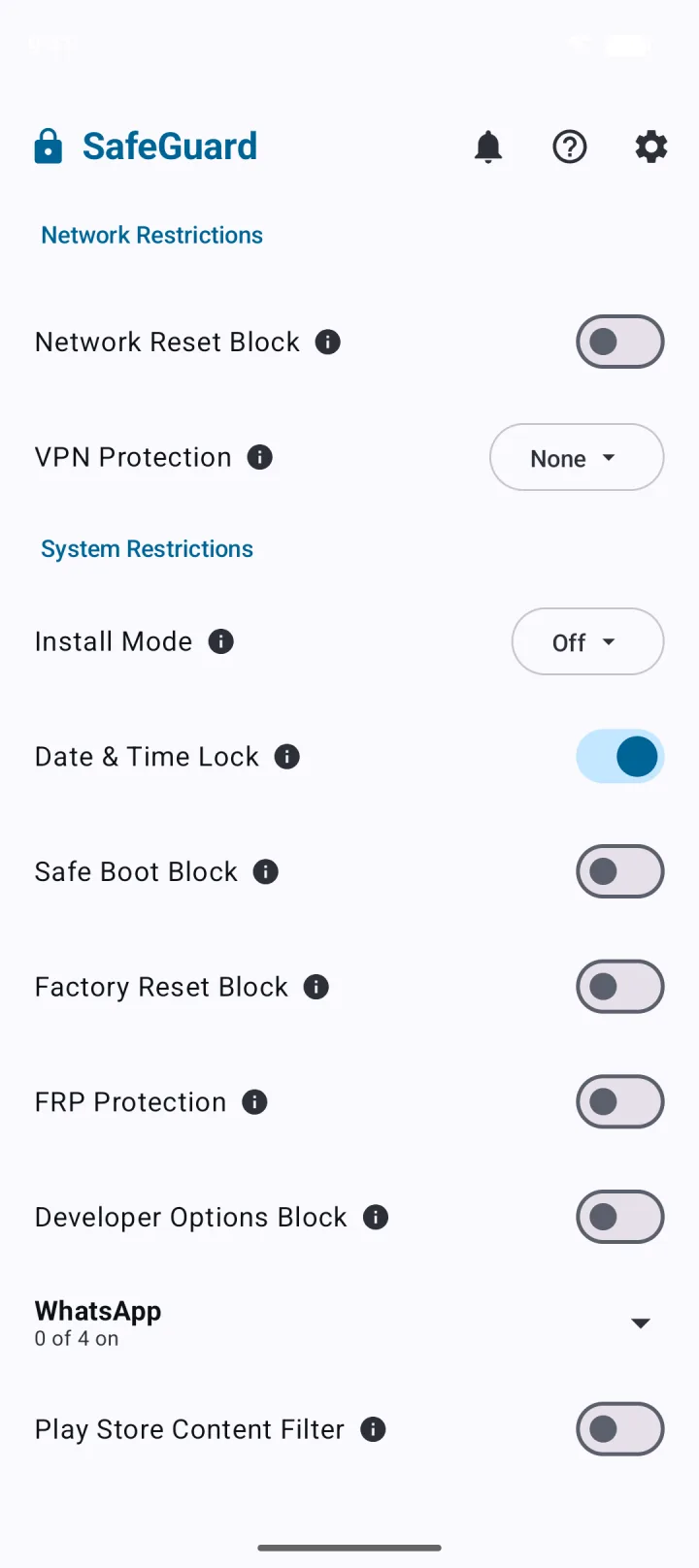
On the main screen, under Network Restrictions:
- VPN Protection: if you do not need a VPN, choose Block Entirely. If another filter of yours runs as a VPN, choose Block to App and pick that app. Only it can start a VPN, and nothing else can get around it.
- Private DNS Lock: choose Family DNS (default). It filters at the domain level in every app and also cuts inappropriate ads inside apps. You can enter your own server under Custom…. While the lock is on, it cannot be changed until the delay passes or the partner approves.
- Network Reset Block: turn it on. It prevents a network settings reset, so the VPN and DNS locks cannot be cleared that way.
System restrictions
- Install Mode: choose Smart. Every newly installed app is suspended and stays greyed out until the partner approves it or the delay passes. Solid blocks installs entirely, which fits only if you need no new apps.
- Date & Time Lock: turn it on. Without it, the delay can be skipped by moving the clock forward.
- Safe Boot Block: turn it on. Android's safe mode switches off third-party apps.
- Factory Reset Block: turn it on.
Apps and browsers
To make SafeSurf the only window, block or hide the other browsers, and the browsers hidden inside apps. You do this in App Manager, which has its own guide.
The delay, last
The delay is a required period before any change that weakens protection. It only works if everything else is already in place.
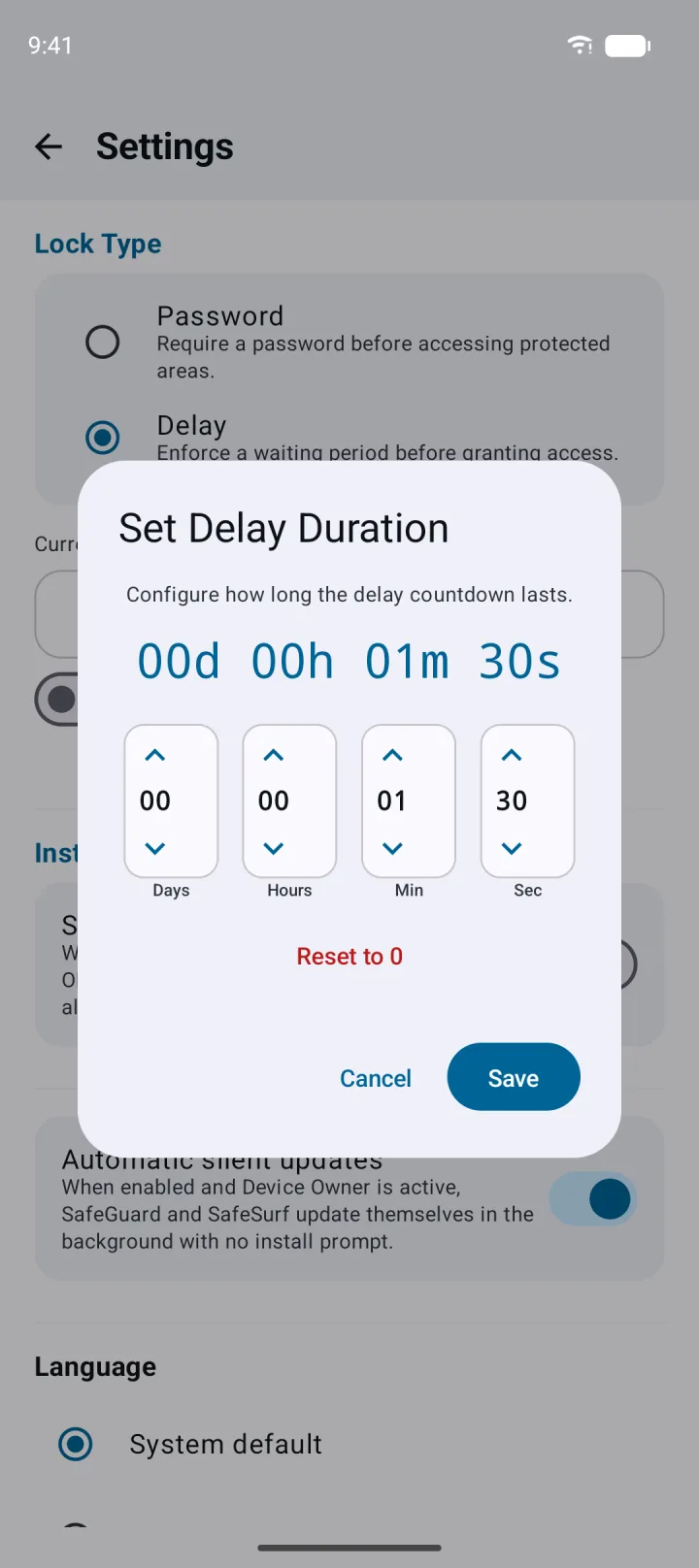
- Tap the Settings gear at the top of the screen.
- Under Lock Type, choose Delay (or Password, if you prefer).
- Tap Change Delay Time and set days, hours and minutes. The maximum is one week.
The last lock
Developer Options Block always goes last. After it, developer options are locked and changing them waits for the delay. Finish anything you need there first, such as wireless debugging.
Related
Further reading
Something not working as described? See troubleshooting, or report a problem.
The support bot answers common questions right away. You can ask it for a person, and we will reply in the chat.