The AI filter (beta)
Last updated:
The AI filter is in beta. It is an extra layer, not a replacement for rules. Our recommendation is to start with no images and no videos.
The filter is for people who need images and videos to be available and want something to screen them. It can make mistakes: sometimes it blocks content that is fine, and sometimes it misses content that should not have passed.
What it does
The filter reads text and examines images, looking for adult, violent or unsafe content. It has no list of sites: it decides by what it sees. That is why it catches things no list knew about, and also why it makes mistakes. All of it runs on the device, without sending what you browse.
When to turn it on
- If you can live without images and videos, do not turn it on. The rules in the rules guide are more reliable, because they do not guess.
- If you must have images or videos, for work, study or sites that do not function without them, turn it on in addition to your rules.
How to turn it on
- In SafeSurf, open the Protection Dashboard and go to the Security Config tab.
- On the smart filter (AI filter) card, turn on the switch and confirm Enable Smart Filter?.
- Under Filter strength, choose Low, Medium (the default) or High.
- On Heads up: AI isn't perfect, tap Continue.
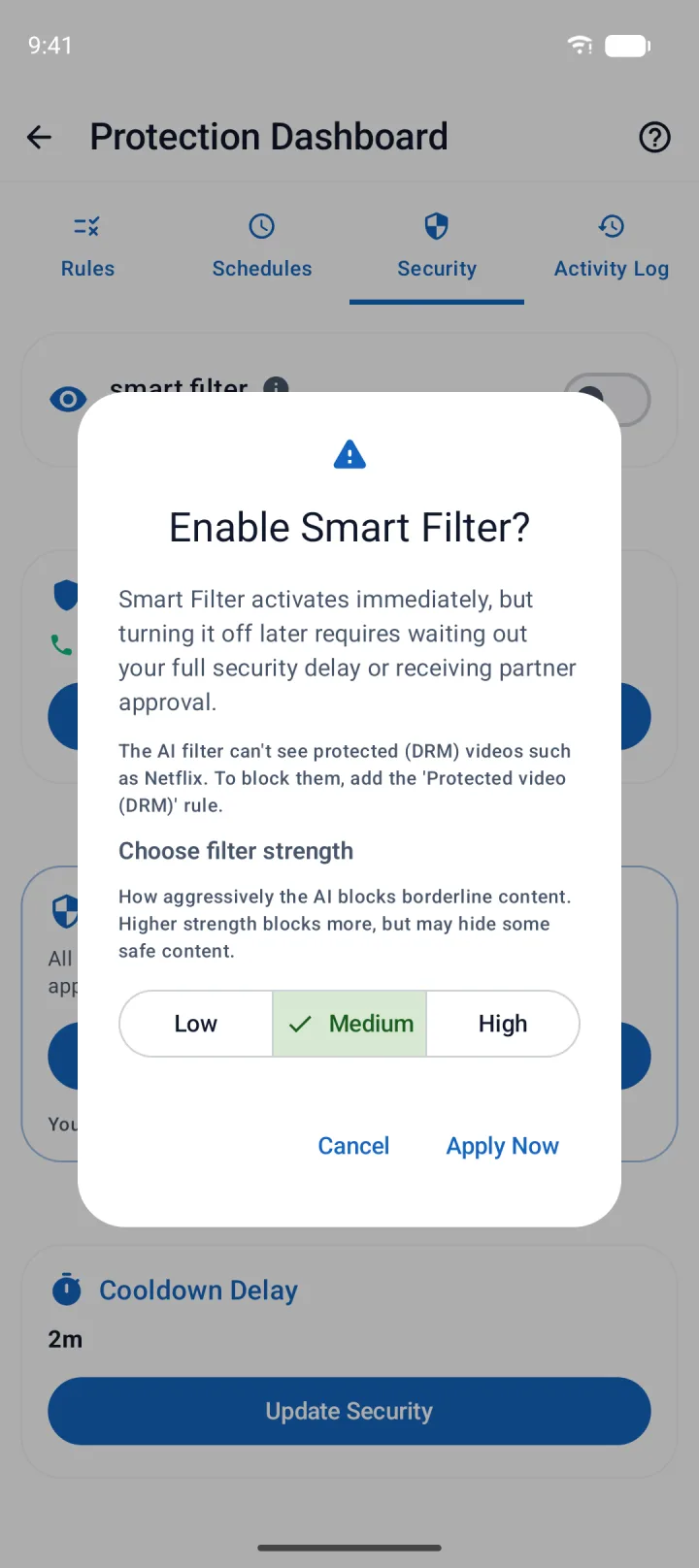
Strength
A higher strength blocks more, and also errs more toward blocking content that is fine. A lower strength blocks less. Start with Medium and adjust to how you use it.
Privacy
The analysis runs on the device. The pages you browse are not sent anywhere.
What it does not do
It is no substitute for judgment, and it is not a guarantee. If something is blocked by mistake, or gets through when it should not, tell us. In the meantime, use rules to fix a specific site.
When it gets it wrong
A fine page may get blocked. You do not need to switch the filter off for that.
- Add an Allow rule for that site, as in the rules guide. Rules come before the AI.
- If it keeps happening, lower the Filter strength. Remember that lowering waits for the delay.
- If you are sure the filter erred, send us a report with the address.
And the other way round: if something got through that should not have, do not count on the filter to catch it next time. Block the site or the file type with a rule.
Related
Further reading
Something not working as described? See troubleshooting, or report a problem.
The support bot answers common questions right away. You can ask it for a person, and we will reply in the chat.